So, you want to build a WordPress Website, but you’re a bit scared of messing up. No worries, this is why we’re writing this post on how to to start a WordPress website – to guide you step-by-step through the process of building your own website with WordPress, and just how easy it is.
But you’re probably thinking, “Create a website in less than 15 minutes? Is that even possible?!” Yep, absolutely. It’s possible with HostUtopia’s one-click WordPress install. WordPress is going to be your website builder platform while HostUtopia is going to be your host, which you need to keep your website up and running 24/7/365.
OK, let’s get started. We’re going to dive right into getting your account setup with HostUtopia, then the one-click process of getting WordPress installed.
STEP-BY-STEP TUTORIAL How To Start a WordPress Website In Less Than 15 Minutes
Sign up for a Web Hosting Package at HostUtopia
Click ORDER NOW: See current entry pricing on our WordPress Hosting page.

Select a Domain Name for your website and Click to Continue.
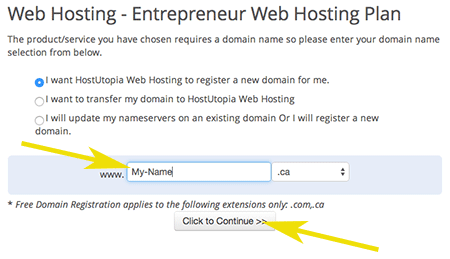
If the domain you want is already taken we will suggest alternatives for you: 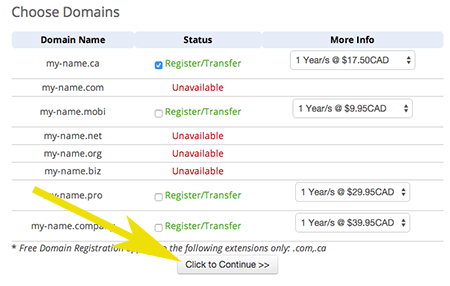
Confirm the billing cycle you wish to choose for your hosting plan. Review current plan names, pricing, and any active free-domain offers on the checkout page.

Confirm your order information and click Checkout
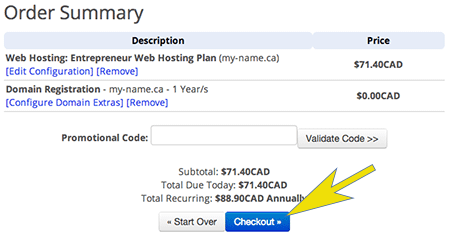
Complete the Customer Info credentials and payment information Tick the “I have read and agree to the Terms of Service Click Complete Order
Check your email for your account login credentials, Login to your HostUtopia cPanel Hosting Canada
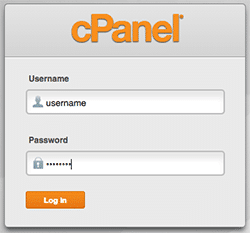
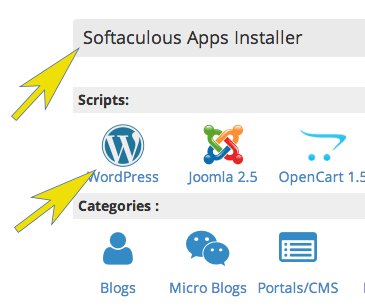
Under the Softaculous Apps Installer in cPanel (Jupiter theme), select WordPress
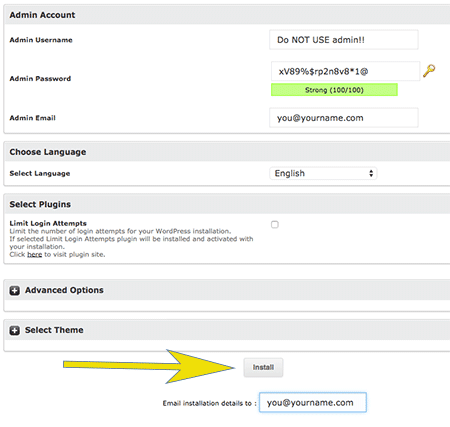
Select the Install Tab and complete the installation information page Note: To install WordPress in the root of your website (yourname.com/) and not in a subdirectory, set Installation URL > In Directory to blank (remove any “wp”). Leave the default database settings unless you know what you are doing. Click Install to complete the installation process.

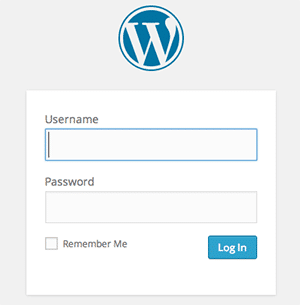
BAZINGA! You’re done. Click the admin URL to login to your WordPress account. During installation you set the WordPress admin username and password in Softaculous. For security, these are not emailed—store them in a password manager.
Next Step…
Online WordPress Video Tutorials – Learn how to modify your WordPress theme, pages, header, plugins etc….